Why Everyone is Buying the Smart Monitor M8 S32Bm80 (Full Review)
After using the Smart Monitor M8 S32Bm80 as my primary screen for several months, I finally feel ready to write a full, honest review. I bought this monitor because I wanted a single screen that could handle remote work, photo editing, video calls, and casual streaming without needing a separate smart TV. What I found was a stylish, convenient, and mostly capable all-in-one display that shines in many everyday scenarios — but it's not without compromises. Below I walk through my hands-on experience, what I loved, what annoyed me, and who I think should (or shouldn't) buy it.
First impressions and setup
Out of the box, the M8 immediately impresses. The styling is thin, modern, and intentionally more like a lifestyle product than a piece of office hardware. I appreciated the minimalist stand and the subtle color options that let the monitor blend with my home office decor. The setup was straightforward: it took me less than 15 minutes from unboxing to a usable display, including mounting the stand and running the included cables.
One thing I noticed right away was how small the bezels are — it looks great on my desk and makes multi-window work feel more immersive. There’s also a built-in webcam (the slim-fit style), which is convenient — no separate webcam to buy or mount. I did have to adjust my desk layout slightly because the stand is wide and doesn’t allow a deep recline; that mattered to me because I like to sit back during long editing sessions.
Daily use: productivity, work, and multitasking
I've been using the M8 routinely for writing, spreadsheets, video calls, and light photo editing. The 32-inch screen size is generous: I can comfortably fit two full-sized windows side by side without feeling cramped. Text is crisp and comfortable at my preferred scaling, and the built-in smart features make connecting to web apps and services fast when I want to take a break from my laptop.
One of the most useful practical features for me is the USB-C connection that carries video and charges my laptop. Hooking up with a single cable in the morning and having my laptop charge while I use the monitor simplified my setup. I noticed a small delay when the laptop went to sleep and the monitor's smart hub wake sequence started, but overall the convenience of plug-and-play outweighed that occasional annoyance.
Multitasking is where the M8 feels like a crossover device between a monitor and a casual TV. It has picture-by-picture and multi-source capabilities that I use when monitoring a live stream on one side while working in an app on the other. The monitor’s smart OS (the same type of smart hub experience that many smart displays use) allowed me to open web apps and streaming apps directly without the laptop — handy during lunch breaks or when I wanted background music from the built-in streaming clients.
Image quality and color
In my experience, the M8 delivers sharp 4K-like detail that makes text easy to read and photos pleasing to preview. Colors are punchy out of the box; I appreciated how vivid streaming content looked during the weekend. For photo editing I did some soft-proofing: while the M8 is quite good for casual editing, professionals who need exact color grading will likely want a monitor with a wider color gamut and better factory calibration.
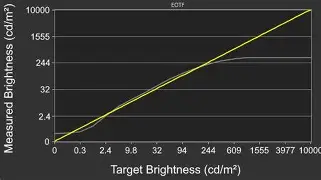
What I found was that mid-tone accuracy is good for web content and social media work, but shadows can lose subtle detail unless you tweak settings. HDR content looks better than SDR thanks to decent local contrast handling, but the monitor's peak brightness and HDR tone mapping are not in the same league as high-end HDR displays. In short: excellent for everyday use and impressive for a smart monitor, but not the top pick for color-critical studio work.
Sound, webcam, and video calls
I relied on the M8's speakers and webcam for many weeks of video calls. The integrated webcam is tidy and convenient — I liked that it’s built into the frame and doesn’t need an extra mount. The image quality for calls is fine in well-lit rooms; in low light the camera relies heavily on software processing, which can introduce a bit of grain or over-sharpening. The monitor includes a simple privacy shutter mechanism, which I used regularly.
The built-in speakers surprised me: they're good for dialogue-heavy content like news and podcasts, and they filled my small room without extra speakers. Bass is limited, and for movies or music I ultimately preferred an external speaker or headphones. For remote meetings and daily use, though, the speakers are perfectly serviceable.
Looking for the best Electronics deals on Amazon?
Shop Amazon →Smart features and UI
One of the biggest selling points for me was the monitor's smart functionality. I could open streaming apps, use web-based productivity tools, and even run lightweight video conferencing apps without turning my laptop on. The remote control is small and intuitive — it's easy to navigate the Smart Hub and switch sources.
That said, the smart OS isn't flawless. Occasionally I found app updates or sign-in flows to be slow, and some niche streaming services weren't available in the native app store. When that happened, I either cast from my phone or connected a laptop. The smart features are excellent for quick access and for reducing the number of devices by my TV/monitor, but they don't replace a fully stocked media player for every scenario.
Gaming and motion performance
I'm not a hardcore gamer, but I did try the M8 with a console and a PC. The experience was enjoyable for casual gaming: input lag felt reasonable, and motion handling is fine for most fast-paced titles. I did notice a slight smearing on very fast camera pans in darker scenes — not unusual for displays in this class — but it didn't ruin any gameplay sessions.
If you're a competitive gamer seeking ultra-low latency and high refresh rates, this monitor isn't aimed at you. It’s optimized for a balance of smart features and general display quality rather than pushing gaming benchmarks.
Build quality and ergonomics
The build feels premium for the price range: the chassis is thin but sturdy, and the finish on my unit resisted fingerprints reasonably well. That said, the ergonomics are a mixed bag. The included stand provides tilt but limited height adjustment and no swivel. I found myself swapping to a VESA-compatible monitor arm after a few weeks to get the screen exactly where I wanted it.
Another small but real annoyance was a mild wobble when I accidentally bumped my desk. It didn't affect day-to-day use, but for a monitor that's likely to be propped up in a home office, better stability would have been welcome.
Reliability and updates
Over the months, software updates added small quality-of-life improvements, like smoother app navigation and occasional firmware patches. I had zero hardware failures and only one weird software freeze that resolved after a restart. For me, the M8 has been reliable and solid as a daily driver.
Pros & Cons
- Pros: Sleek, modern design that fits well in a home office or living room.
- Convenient USB-C connectivity that simplifies laptop docking.
- Built-in smart hub and streaming apps reduce the need for extra devices.
- Integrated webcam and decent speakers for video calls and casual media.
- Large 32-inch size is great for multitasking and productivity.
- Easy setup and generally reliable daily performance.
- Useful multi-source features (picture-by-picture, multi-window) for productivity.
- Cons: Limited stand ergonomics — tilt only and slight wobble.
- HDR and peak brightness are modest compared to high-end HDR displays.
- Speakers lack bass depth for immersive movie watching.
- Smart OS can be slow at times and some niche apps may be missing.
- Not ideal for color-critical professional photo/video work without calibration.
Comparison: How the M8 stacks up
| Feature | Smart Monitor M8 S32Bm80 (my experience) | Typical 32" 4K Monitor | Smart TV (32") |
|---|---|---|---|
| Smart OS & Apps | Built-in Smart Hub, good app selection, occasional sluggishness | Usually none — requires external device | Very good app ecosystem, TV-focused features |
| USB-C & Convenience | USB-C with video + charging — big convenience win | Often missing or limited | Rare — most TVs don't offer laptop charging |
| Color & HDR | Great for general use, limited true HDR punch | Varies — pro monitors often better calibrated | TVs may have better HDR but larger form factor |
| Ergonomics | Tilt-only stand; VESA compatible | Often includes height and swivel | Limited; mounting required for flexibility |
| Sound & Webcam | Built-in speakers & webcam — very handy | Usually none | Speakers built-in; webcam rare |
Buying guide: who should consider the M8 and what to check before you buy
In my experience, the Smart Monitor M8 S32Bm80 is best for people who want a single-screen, low-clutter setup that covers both productivity and casual media without extra hardware. Here are practical tips and things I looked for and recommend you check before purchasing:
1. Decide how you'll use it
If you need a monitor primarily for office productivity, streaming, and video calls, this is a great fit. If your work requires precise color grading or you’re a competitive gamer seeking 120Hz+ performance and ultra-low latency, you might want to consider a more specialized monitor.
Discover deals on Electronics — updated daily.
Shop Amazon →2. Check your desk depth and plan for mounting
The M8's stand is stylish but not deeply adjustable. If your desk setup needs more height or swivel, make sure you have a VESA arm or are comfortable with the monitor's tilt range. I ended up using a VESA arm for better ergonomics.
3. Confirm USB-C power delivery needs
The single-cable convenience is one of the M8's best features. If you plan to use it as a dock for a laptop, verify that the monitor's USB-C power delivery meets your laptop's charging requirements. In my case, my laptop charged reliably, but higher-power laptops may need an additional charger.
4. Manage HDR expectations
If HDR is a major reason you're buying a new display, know that while HDR content looks noticeably better than SDR on the M8, it won't match the peak highlights and contrast of high-end HDR monitors or TVs. It’s a significant upgrade over non-HDR monitors for everyday viewing, but don’t expect cinematic HDR performance.
5. Test the smart features you care about
Make sure the streaming and productivity apps you use are available and perform well on the monitor's smart OS. I found mainstream apps worked great, but some niche services required casting or a connected device.
6. Consider accessories
I recommend budgeting for a VESA arm if you want full ergonomic control, and possibly a separate speaker or soundbar if you want better audio for movies and music. If you do color work, a calibration tool will help get the most accurate results.
Final thoughts and conclusion
After months of everyday use, the Smart Monitor M8 S32Bm80 has become my go-to screen. I appreciated the clean design, the convenience of USB-C laptop charging, and the integrated smart features that made it easy to switch between work and entertainment. The webcam and speakers are useful additions that simplified my setup, and the overall image quality is excellent for general productivity and streaming.
That said, I was surprised by a few limitations — chiefly the modest HDR performance, the stand's limited ergonomics, and occasional sluggishness in the smart UI. Those are not deal-breakers for my use case, but they are real trade-offs to be aware of. If you want a stylish, multifunction monitor that reduces the number of devices on your desk and handles work and media well, the M8 is an excellent pick. If you need studio-grade color accuracy, pro-level HDR, or tournament-grade gaming performance, you might be better served by a more specialized monitor.
In my experience, the M8 strikes a thoughtful balance between convenience and capability. It solves the everyday problem of having separate devices for work and entertainment, and for me that convenience has translated into fewer cables, less clutter, and a happier workspace.